Real World Art >
Behind the Lens > Editing out modern elements in landscapes
When photographing landscapes, historic sites, or ruins, modern elements such as people, cars, signs, or trash can distract from the scene you want to capture. Fortunately, with careful preparation and editing, you can create images that look timeless. Here's how to get started - even if you have no prior experience with photo editing.
Preparation
The key to successfully removing modern elements starts at the moment of taking the photograph.
- Take multiple shots: If there are people moving through your scene, take several photos in quick succession. This is especially useful in busy tourist locations.
- Use a tripod: Keeping your camera steady ensures all your shots align perfectly, which is important if you want to combine images later.
- Frame carefully: Try to anticipate where modern objects might appear and compose your shot to minimize their impact.
Taking multiple images gives you more options to 'stack' them later and remove moving objects without leaving gaps in the background.
Editing Methods Using Free Tools
Even without paid software like Photoshop, you can remove modern elements from your images using free downloads or online tools. Here are some beginner-friendly methods:
1. Photo stacking (for moving people)
- Tool: GIMP (free downloadable software)
- How it works: Import your multiple shots as layers. Use the 'Layer Mask' tool to selectively reveal parts of the background while hiding moving people.
- Tip: Only reveal the parts of each layer where the scene is clean, effectively replacing the areas with moving people with a clear background from another photo.
2. Clone and heal tools (for static objects)
- Tools: GIMP , Photopea (free online editor)
- Clone tool: Lets you copy one part of your photo over another. Useful for covering signs, trash, or poles.
- Healing tool: Automatically blends the copied area to match the surrounding colors and texture. Perfect for filling gaps after removing unwanted elements.
Example workflow in Photopea:
- Open your photo.
- Select the Clone or Heal tool.
- Alt-click (or equivalent) on an area you want to copy.
- Brush over the element you want to remove.
- Repeat as needed, zooming in for detailed areas.
3. Content-aware removal (AI-assisted)
- Tools: Cleanup.pictures (free online), Inpaint Online
- How it works: You highlight the object, and the tool automatically fills in the area based on the surrounding scene. This is faster than manual cloning and works surprisingly well for beginners.
Tips for a Natural Result
- Work gradually: Remove objects in small areas rather than trying to do everything at once.
- Zoom in: Details matter, especially on textures like rocks, grass, or old walls.
- Compare with the original: Check for repeated patterns or unnatural patches that can give away editing.
- Keep backups: Always save the original photo in case you want to start over.
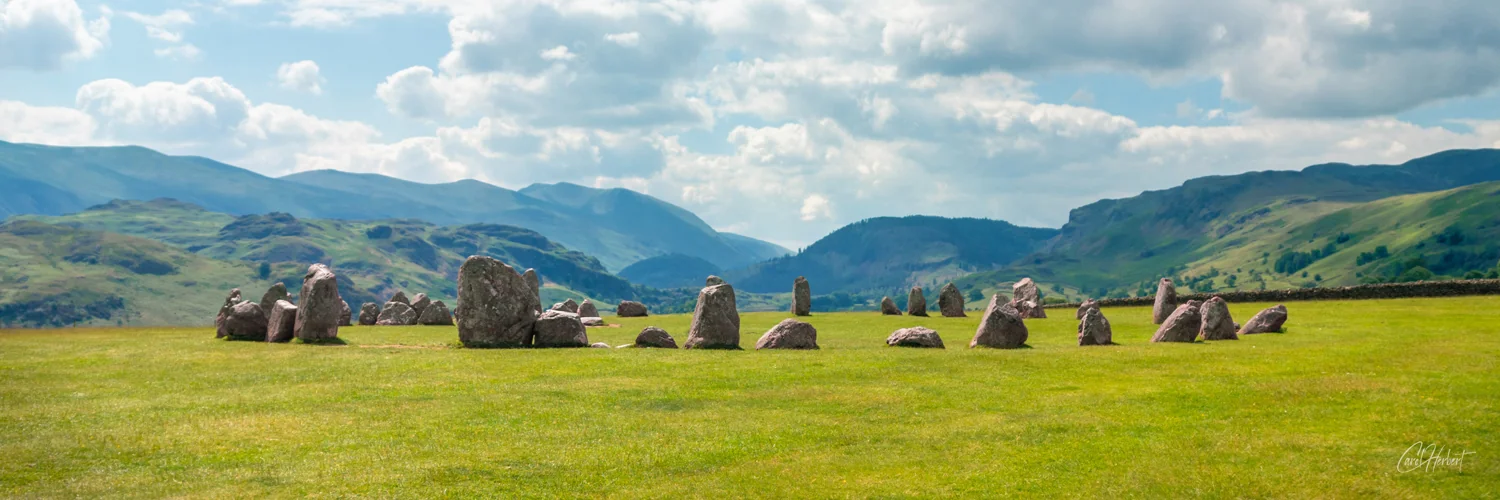
Here's one of my photographs of the Castlerigg Stone Circle, minus the 30 or so other tourists who were milling around, and 'cleaned' using the photo stacking method.
Wall Art Gifts Under £30 That Don't Look Cheap
23 Nov 2025
The gifts that keep getting "Where did you get THAT?" Every year I get the same message: 'Carol, I love your prints but I'm on a budget - help!' So here's my official 2025...
Read more
How to Keep Your Canvas Prints Looking Brand New for Decades
2 Mar 2025
I want your canvas print to stay as vibrant on your wall in 2055 as it was the day it arrived, so here are my battle-tested, drama-free care tips (with a little British sarcasm...
Read more
Real World Art is now Award Winning!
1 Feb 2025
Real World Art was named 2024's Leading Provider of Fine Art Landscape Photographic Gifts - UK in Lux Life's inaugural Creative and Visual Arts Awards.